
Uploading a File or Photo
4. Adding a File or Photo
SkyStudio Chat allows you to add files or images to your conversations and perform different operations on the uploaded content. You can also access additional chat tools such as connectors, Analysis Agent, Deep Research, and Web Search from the + menu in the message input area.
4.1. Adding a File or Photo
To add a file or image from your computer directly to the conversation, click the + icon next to the message input field and select Add files or photos.
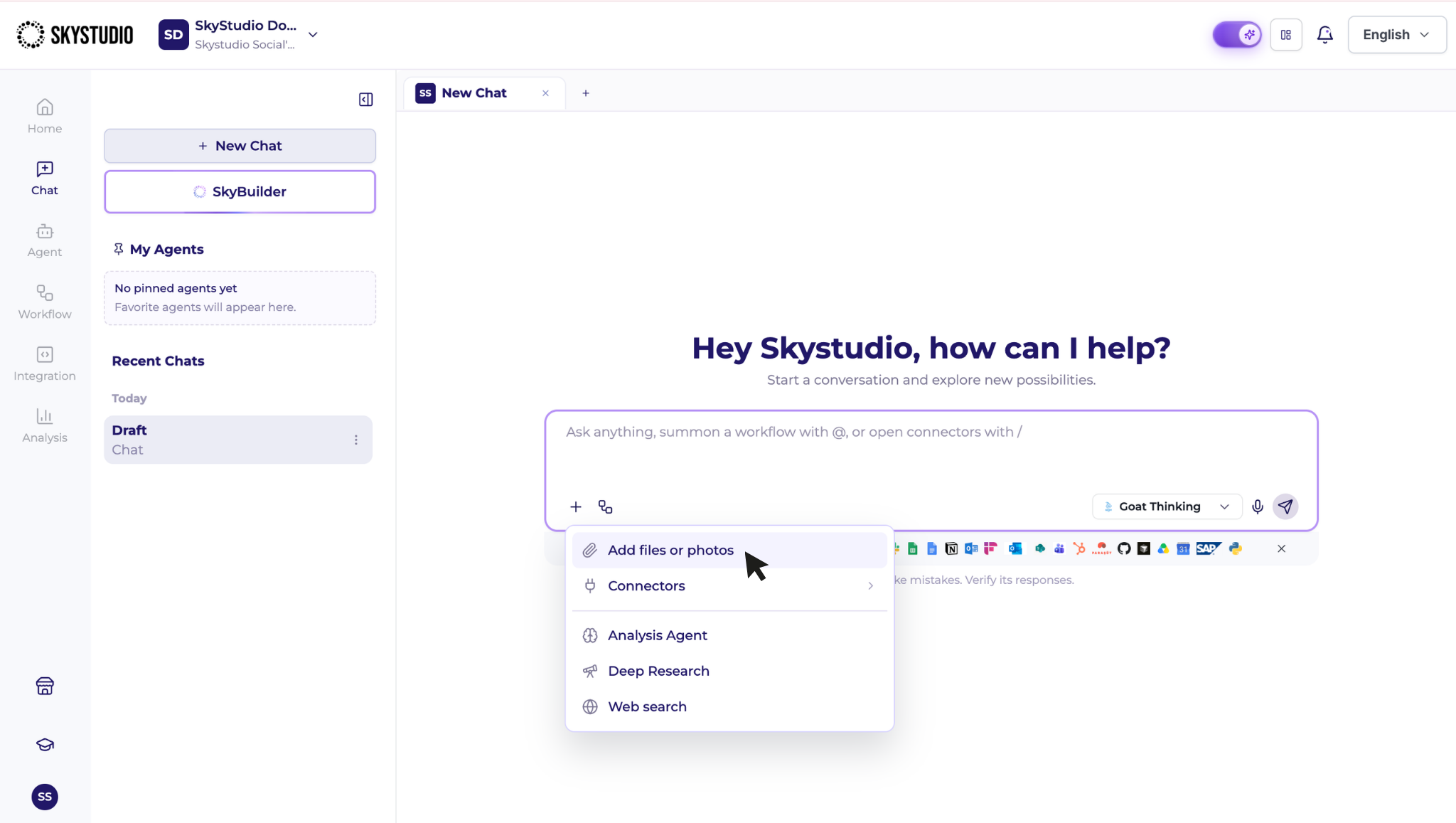
After adding the file, you can use natural language in the message input field to describe what you want SkyStudio to do with the content.
For example:
- Summarize this document.
- List the important clauses in this contract.
- Compare the two files I uploaded.
- Explain the content of this image.
- Extract the key information from this file.
4.2. Supported File Types
SkyStudio Chat supports different types of content. The file types you can add to a conversation include:
- Documents and text: PDF, DOCX, TXT, ODT, HTML
- Tables and data: CSV, XLSX, XLS, JSON
- Structured data: XML, YAML
- Presentations: PPTX, ODP
- Spreadsheets: ODS
- Audio: MP3, WAV, M4A, OGG, FLAC
- Video and media: WEBM, MPEG, MPGA
- Images: PNG, JPG, WEBP, GIF
The operations available for uploaded files may vary depending on the file type and the chat tool being used.
For more advanced tasks such as data analysis, calculations, chart generation, or creating output files, you can use the Analysis Agent.