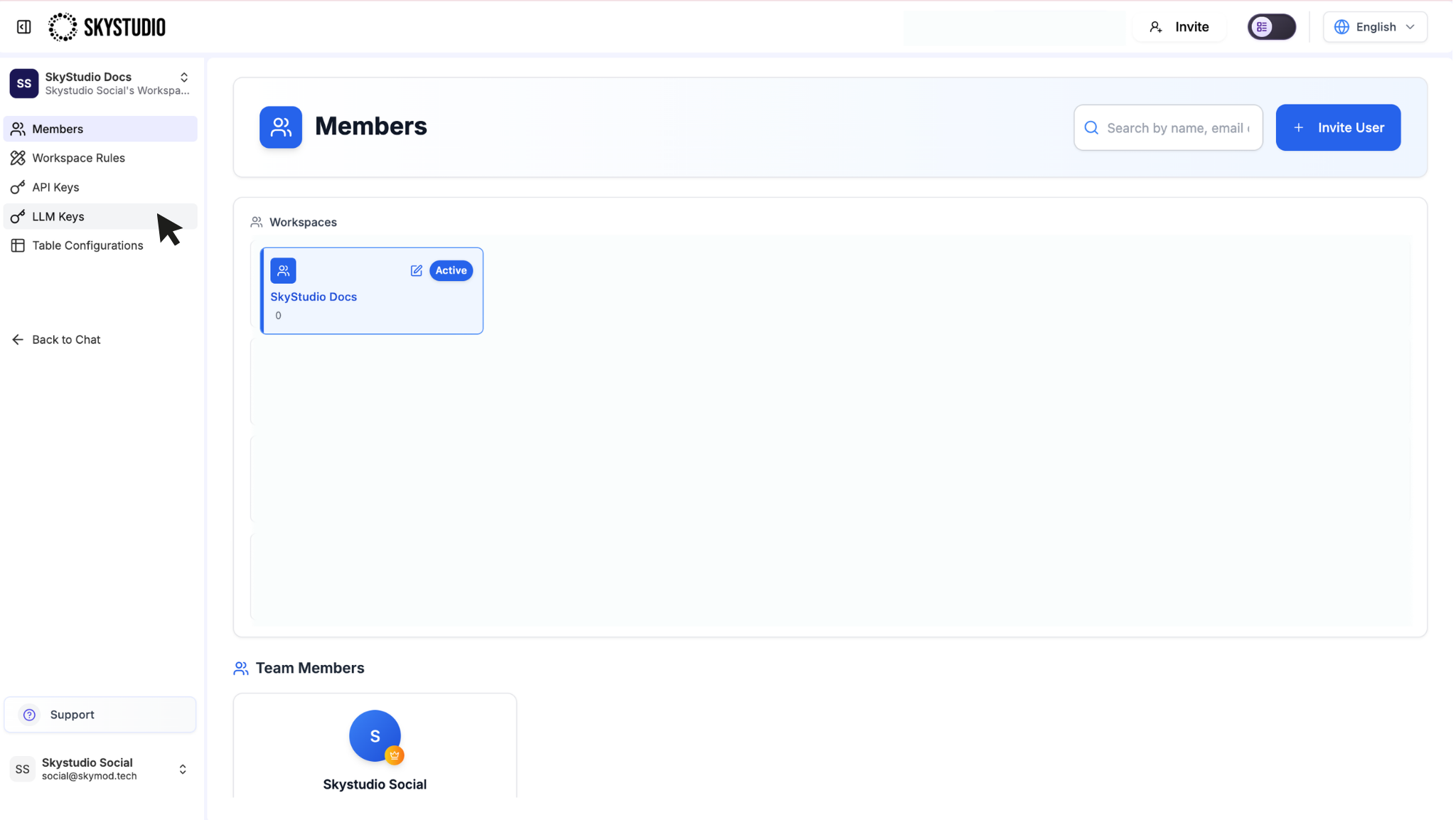
LLM Keys allow you to use the LLM models available in SkyStudio through external applications and services. With a generated LLM API key, you can send API requests to supported models and use model responses within your own applications.
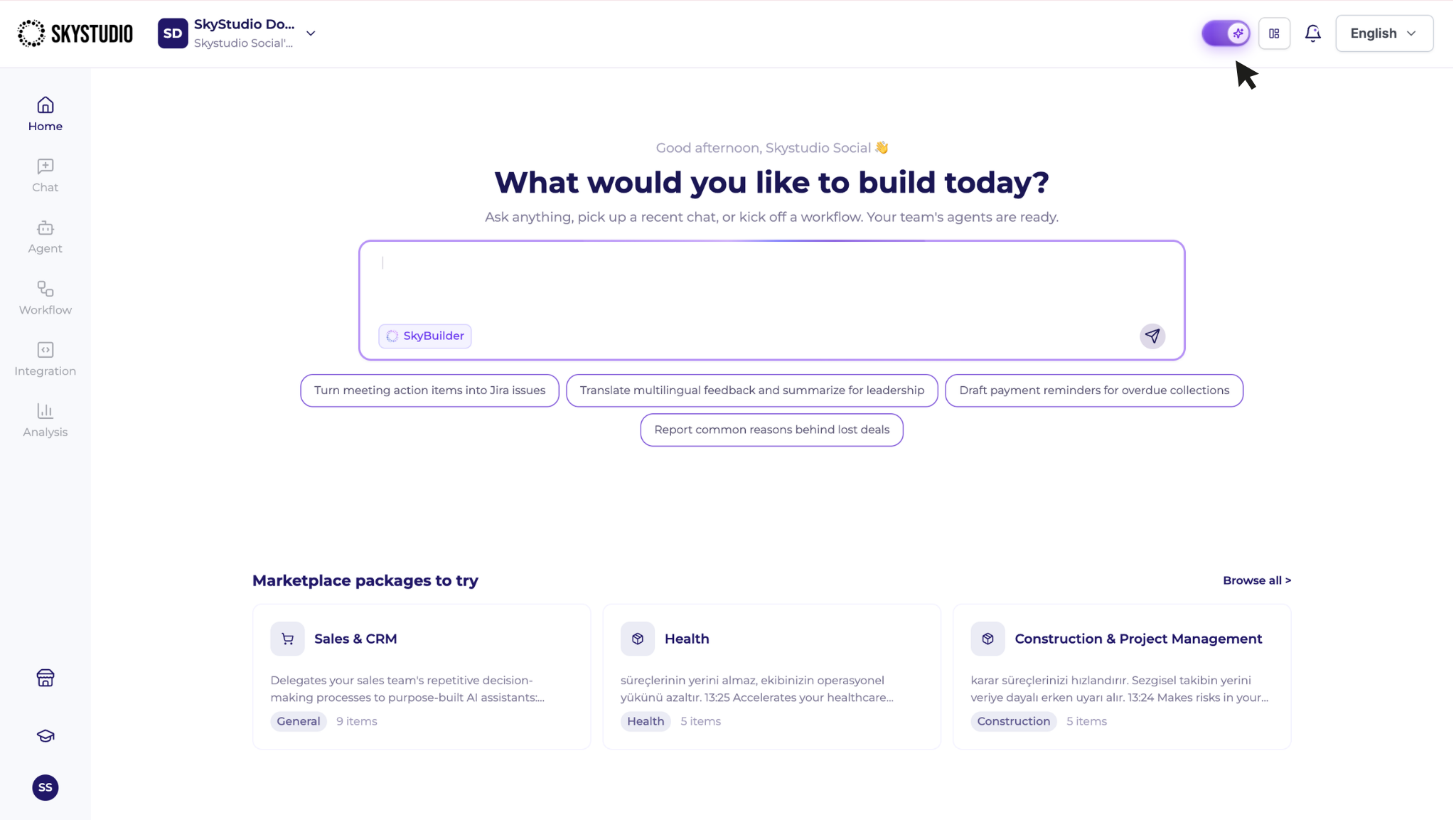
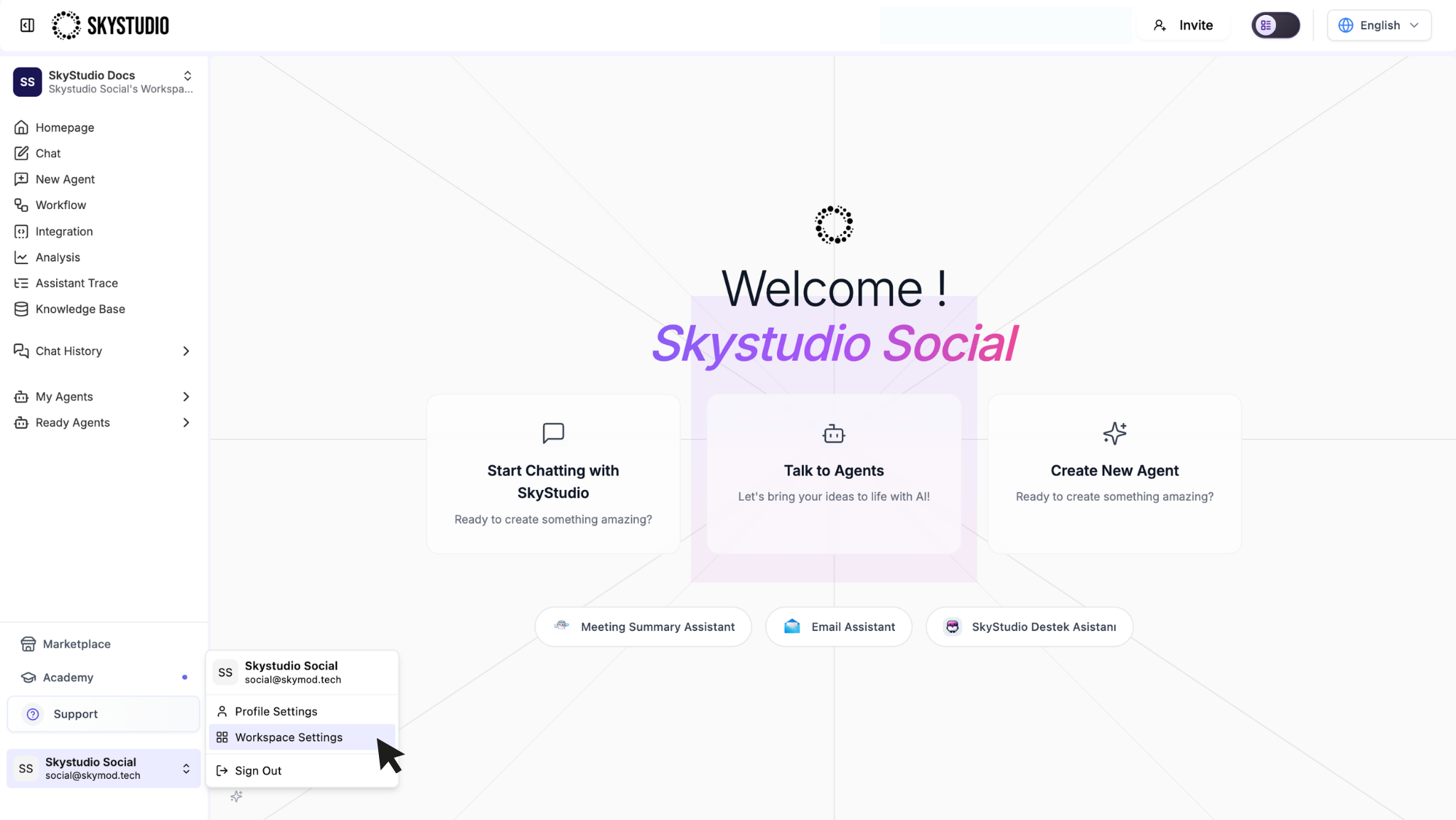
Note: The LLM Keys feature is available in the legacy SkyStudio interface. From the new interface, you can switch to the legacy interface using the Old UI option at the top of the page.
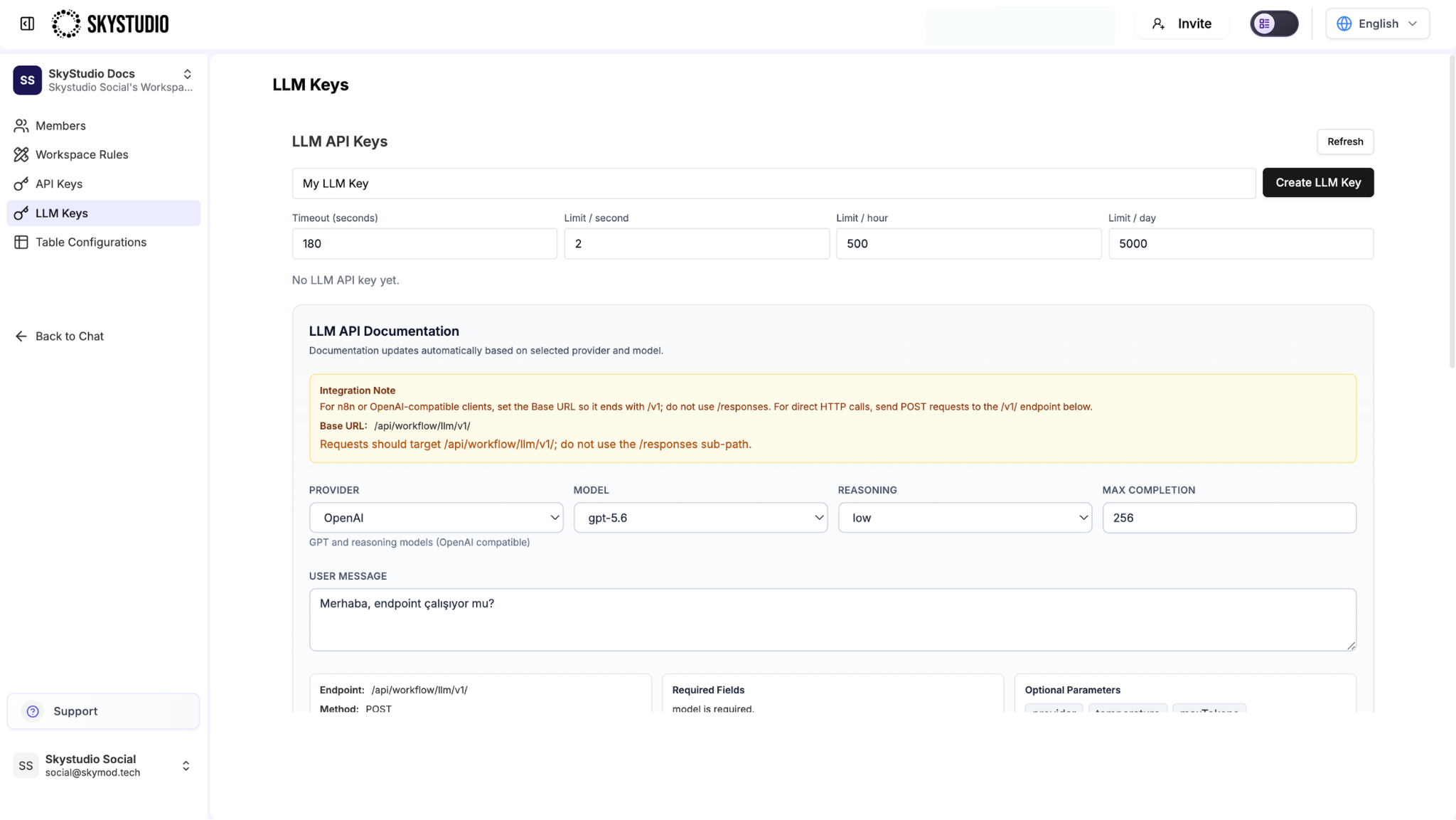
The LLM API Documentation section explains how to use your generated LLM key to send API requests to the LLM models available in SkyStudio.
In this section, you can select the provider and model you want to use, configure model-specific settings, and review API request examples that are automatically generated based on your selections.
The Integration Note, located directly below the LLM API Documentation section, provides important information about the Base URL and endpoint structure used for API integrations.
For Cursor integrations, use the following Base URL:
https://skystudio.skymod.tech/api/workflow/llm
Important: Enter this address directly in the Cursor Base URL field without adding /v1. Cursor may automatically append /v1/models, /v1/chat/completions, or /v1/responses depending on the request.
For direct HTTP requests, append the appropriate API endpoint to the Base URL. For example, use the following endpoint for the Responses API:
To begin configuring an API request, select the LLM provider you want to use from the Provider field.
Then, select the model to be used for the API request from the Model field.
Available model settings may vary depending on the selected provider and model. Additional settings such as Reasoning and Max. Completion may be displayed for supported models.
Changes made to these fields are automatically reflected in the API request examples shown further down the page.
Enter the message or instruction you want to send to the model in the User Message field.
The entered message is automatically included in the generated API request. This allows you to review the request structure generated for the selected model and configuration before implementing the actual integration.
Required and optional fields may vary depending on the selected provider and model. When implementing an integration, refer to the current fields displayed in the documentation interface for your selected configuration.
After entering the provider, model, and user message information, SkyStudio automatically generates API request examples based on the selected configuration.
The JSON Payload (Automatic) and cURL (Automatic) sections are available at the bottom of the page.
The JSON Payload (Automatic) section displays the JSON body that will be sent with the API request. Changes to the provider, model, user message, or model settings are automatically reflected in the JSON payload.
The cURL (Automatic) section provides the equivalent request in cURL format. This example includes the endpoint, HTTP method, required headers, and request body.
Use the Copy option available in either section to copy the generated example and adapt it for use in your own application or integration.
The Example Response section displays an example of the response structure that may be returned by the API request.
This section allows you to review how model-generated content is returned within the API response.
Request and response structures may vary depending on the selected provider, model, and model configuration. When developing an integration, use the current examples generated in the LLM API Documentation interface for your selected configuration.
You can use your generated LLM key to authenticate requests sent to the SkyStudio LLM API from external applications or services.
When creating an API request, include the key as a Bearer Token in the Authorization header:
Authorization: Bearer <YOUR_LLM_API_KEY>
You can use the JSON Payload or cURL examples provided in the LLM API Documentation section to build your request. After selecting the provider and model you want to use, copy the generated example and adapt it to your application.
For direct requests to the Responses API, send the request to the following endpoint:
Generated LLM keys can be managed from the LLM Keys page.
Each key displays its current Status and Last Used information. Keys that are available for use are displayed as Active. If a key has not yet been used, the Last Used field may display -.
Use the eye icon next to a key to view it and the copy icon to copy it.
To change the request limits assigned to a key, update the relevant values and click Refresh to apply the changes.
If an LLM key is no longer required, click Revoke next to the corresponding key.
Revoking a key that is currently in use will cause API integrations relying on that key to stop working. Before revoking a key, make sure it is no longer being used by any applications or integrations.
Important: Store your LLM API key securely and do not share it with unauthorized users. Never expose the key in public source code or use it directly in client-side applications accessible to end users.