
Adding Workflows to a Chat
6. Adding Workflows to Chat
You can add workflows created in SkyStudio to your conversations and use them directly within the chat.
6.1. Adding a Workflow
To add a workflow to a conversation, click the Workflow icon next to the message input field.
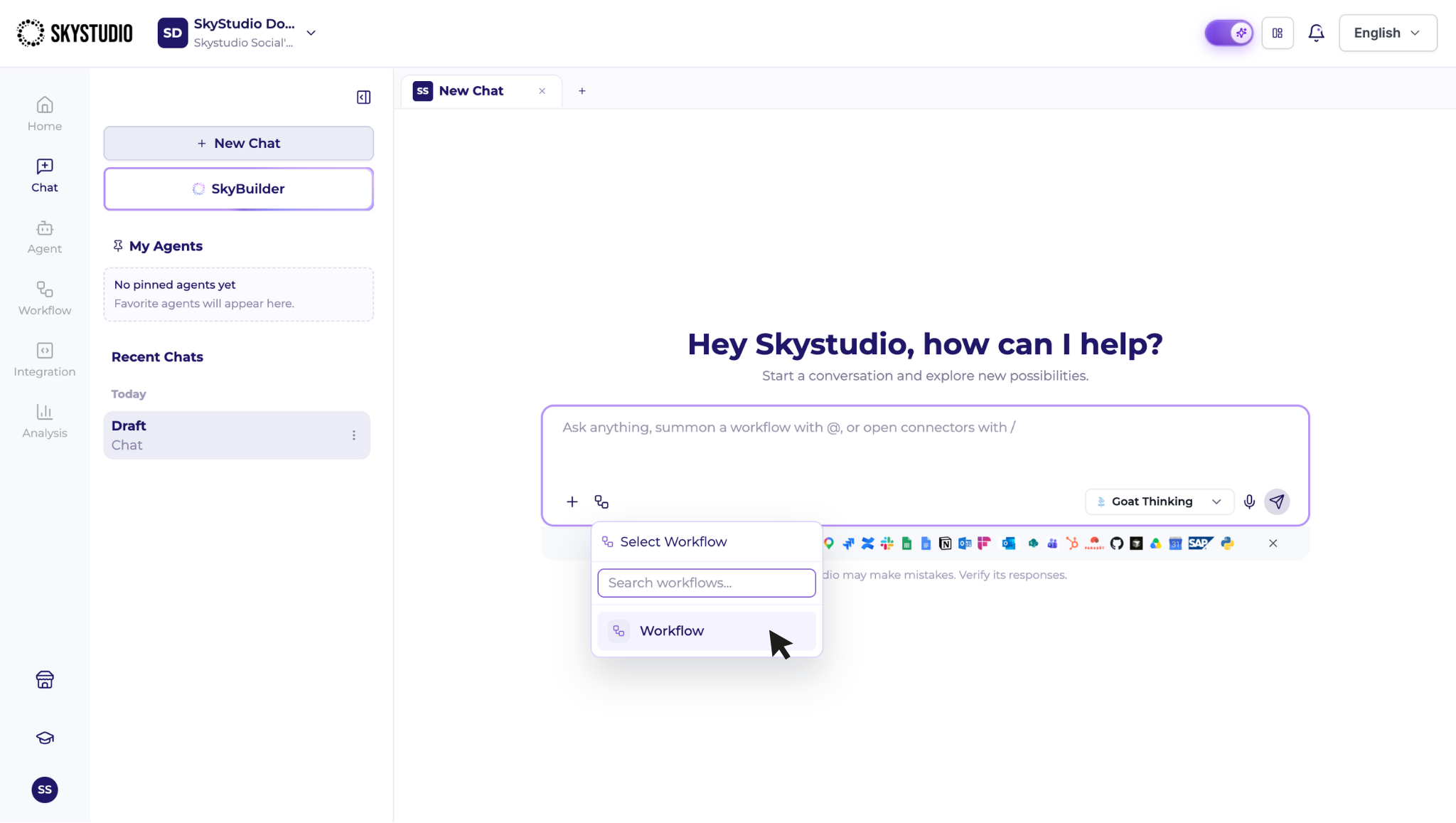
In the Select Workflow field, search for and select the workflow you want to use. The selected workflow is then added to the conversation.
You can also search for and add workflows to your conversation by using @ in the message input field.
After adding the workflow, enter the task you want to perform in the message input field.
For example:
- Analyze this file and send the result by email.
- Create tasks from the meeting notes.
- Use this data to prepare a weekly report.
- Analyze customer feedback and summarize the results.
6.2. Adding Published Workflows
Only published workflows can be added to a conversation.
If you want to use a workflow that has been created but not yet published, you must first publish it from the Workflows section.
Once the workflow is published, it can be selected from the Chat screen, added to the conversation, and used directly within the chat.