
Managing Chat
1. Managing Chats
With SkyStudio Chat, you can start new conversations, open multiple chat tabs at the same time, and return to previous conversations. You can keep separate chats for different topics or tasks, making it easier to organize and continue your work.
1.1. Starting a New Chat
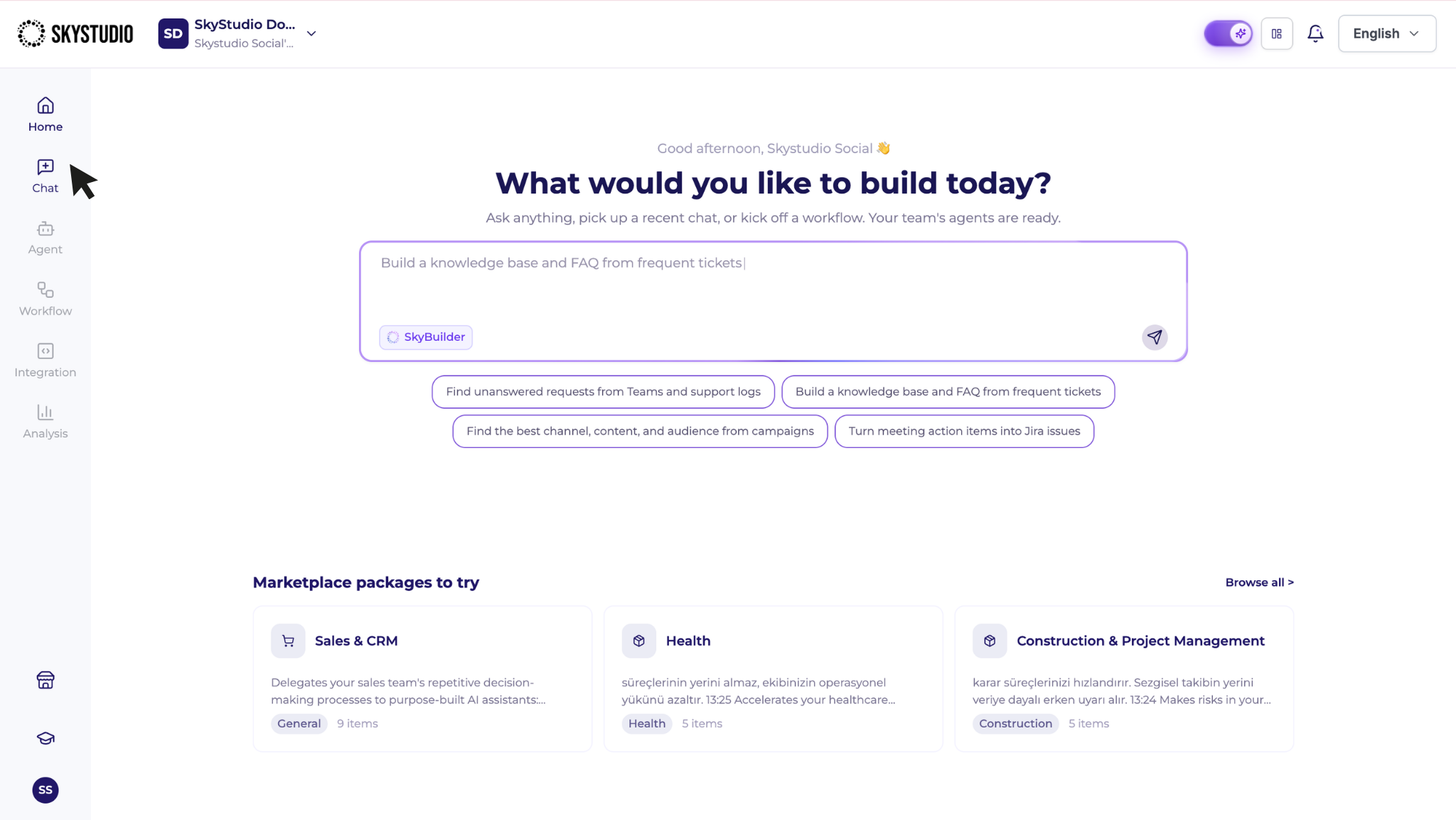
To start a new conversation, select Chat from the left-hand navigation menu.
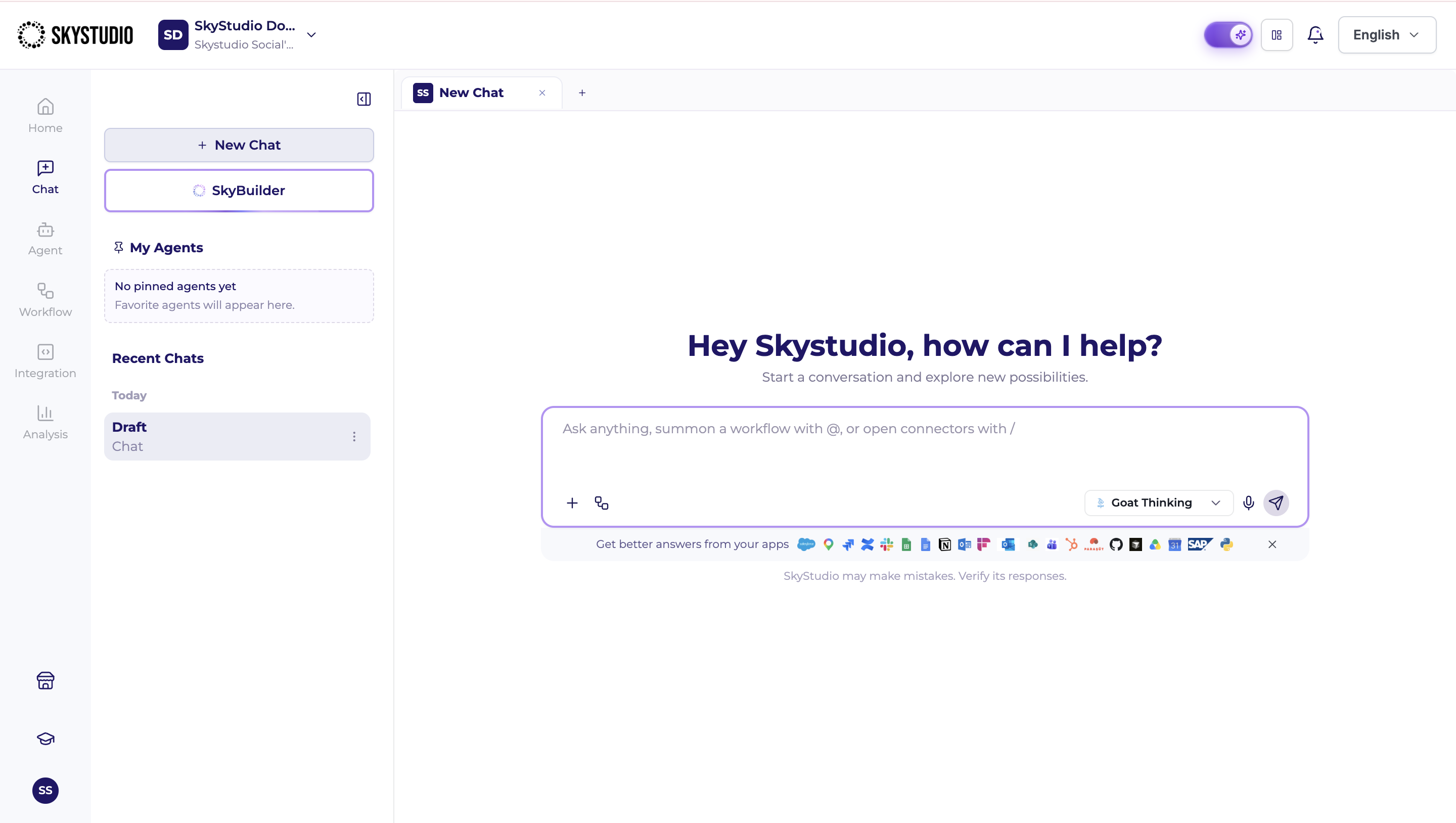
On the Chat screen, the left panel displays options for creating new chats, your agents, and your chat history. The main area displays the active conversation and message input field.
To start a new conversation, click + New Chat.
For example:
- Summarize this text.
- Research the major developments in artificial intelligence in 2026.
- Analyze the sales data in the file I uploaded.
- Draft a formal email to send to a customer.
- Generate a landscape image.
1.2. Opening a New Tab
SkyStudio Chat allows you to work with multiple chat tabs simultaneously.
Click the + icon at the top of the active chat to open a new chat tab.
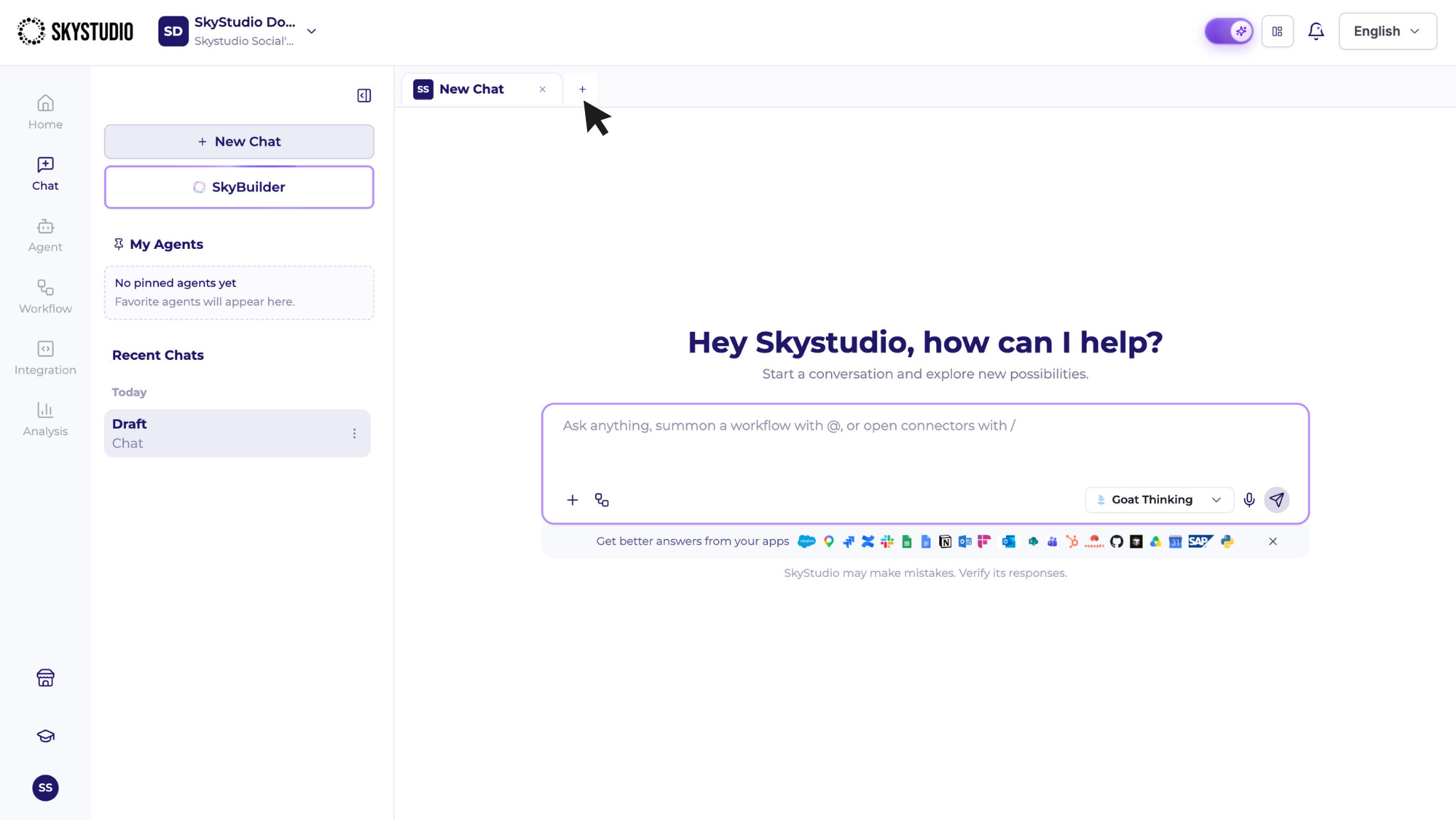
Each tab can be used for a different topic or task.
This allows you to start another conversation without closing your current chat and manage multiple tasks from the same screen.
To close a tab, click the × icon on the corresponding tab.
This feature is particularly useful when working on different topics or with multiple agents at the same time, as it helps keep conversations separate and organized.
1.3. Viewing Chat History
Your previous conversations are displayed in the Recent Chats section in the left panel.
Each chat entry displays the chat title, the Chat or associated agent name, and the time information on the right.
When you hover over or select a conversation, additional available actions may be displayed.
To continue a previous conversation, simply click the relevant chat. The selected conversation opens in the chat area, allowing you to continue from where you left off.
The chat history includes both standard chats and conversations conducted with agents. For standard conversations, Chat is displayed below the chat title. For conversations conducted with an agent, the corresponding agent name is displayed instead.
This makes it easy to distinguish standard chats from agent-based conversations and quickly return to previous conversations and tasks.